
File Explorer search doesn’t find files in a Vault drive
On Windows, File Explorer search sometimes doesn’t find files in a Vault drive. We’re working on a fix.
In the meantime, check whether the Always search file names and contents option is turned on in File Explorer. If it is, turning it off may fix the problem.
Check the “Always search file names and contents” option
Section titled “Check the “Always search file names and contents” option”This is a File Explorer setting, so you can check it from any File Explorer window.
-
In File Explorer, select See more (…) in the toolbar.
-
Select Options.
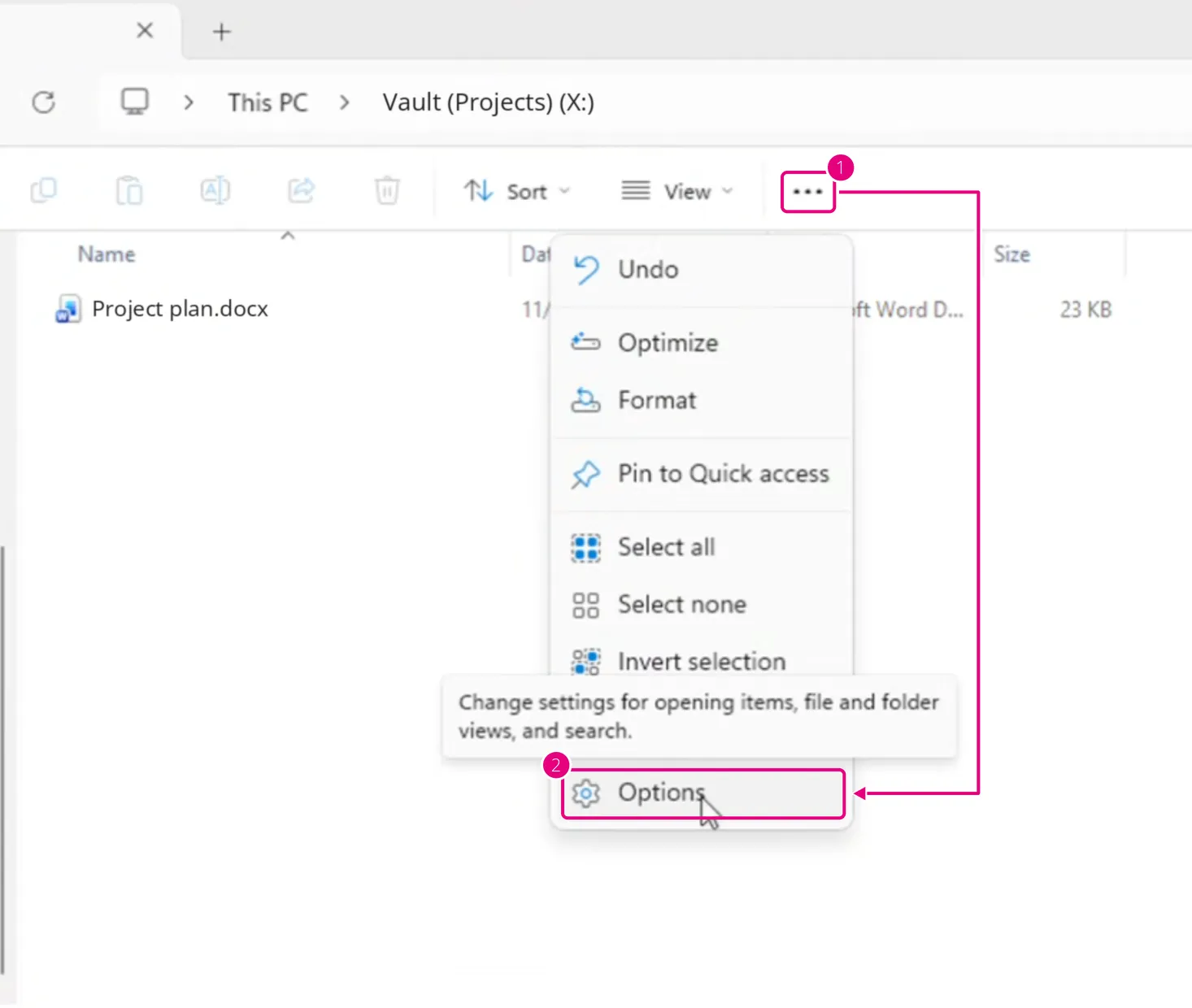
-
In Folder Options, select the Search tab.
-
Under When searching non-indexed locations, check whether Always search file names and contents is selected. If it is, clear it.
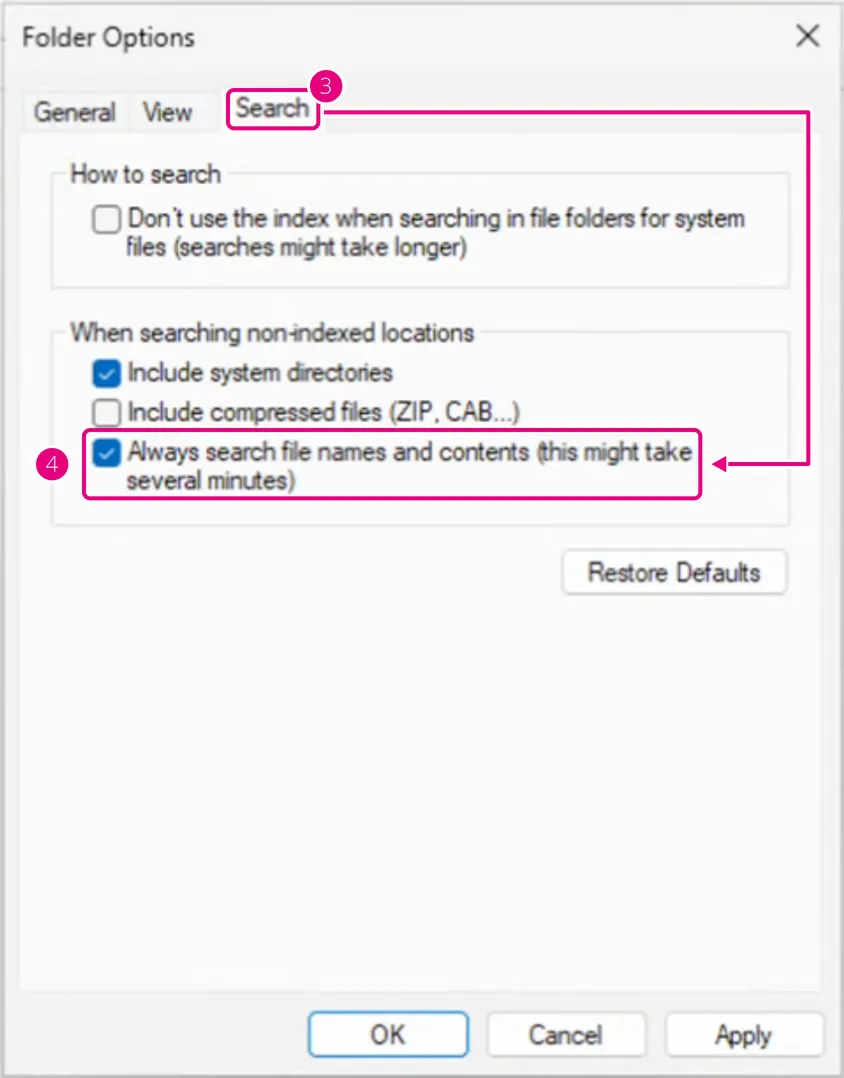
-
Select OK.
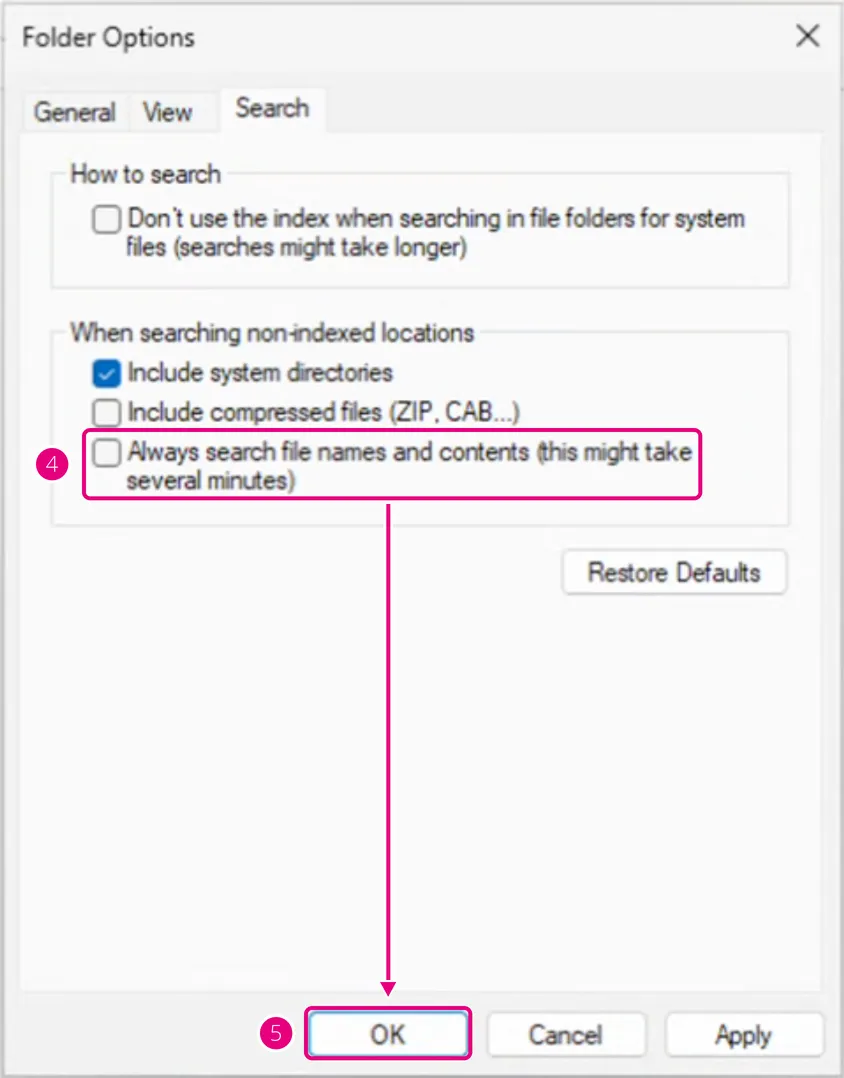
Search the Vault drive again. If search still doesn’t find your files, contact support@xqmsg.com.
On Windows 10, open the setting from the View tab: select Options, then follow steps 3 to 5.
What changes when you turn it off
Section titled “What changes when you turn it off”The setting applies to every location that Windows doesn’t index, not just Vault drives. In those locations, File Explorer searches file names but not file contents. In locations that Windows indexes, File Explorer still searches file contents.
With the option turned off, File Explorer doesn’t search inside files in a Vault drive. To find text in a file, open the file and search within the app.
© Copyright XQ Message Inc. · FAQ