
Selective FIPS Enforcement
Selective FIPS Enforcement lets an administrator require FIPS-validated encryption for chosen users and groups, such as people who handle Controlled Unclassified Information (CUI), while the rest of the team continues to send secure email with standard encryption.
How FIPS Mode works
Section titled “How FIPS Mode works”When FIPS Mode is enabled, it applies to every member of your team by default. Each member must encrypt email with FIPS-validated cryptography, which requires the XQ FIPS Helper application to be installed and running on their computer and the XQ FIPS Helper extension to be installed in Edge or Chrome.
If a member who is subject to FIPS Mode doesn’t have these components installed and running, they can’t send encrypted email from the XQ Dashboard, the Outlook add-in, or the Chrome extension.
FIPS Mode does not affect recipients. Recipients can decrypt messages whether or not they have the FIPS components installed.
How Selective FIPS Enforcement changes this
Section titled “How Selective FIPS Enforcement changes this”With Selective FIPS Enforcement turned on:
| Team member | Encryption used | FIPS components required to send? |
|---|---|---|
| In the Restricted users and groups list, directly or through a group | FIPS-validated | Yes |
| Not in the list | Standard AES-256 GCM | No |
Groups can be XQ team groups created in Team Management or groups synced from your identity provider (for example, Microsoft Entra ID). Group membership is evaluated live: when someone joins a restricted group, FIPS is enforced for them without any change in the XQ Dashboard, and when they leave the group, enforcement stops.
Before you begin
Section titled “Before you begin”- You need administrator access to the XQ Dashboard.
- Every user you plan to restrict should have the XQ FIPS Helper application and the XQ FIPS Helper extension installed. Otherwise, they won’t be able to send encrypted email until they install them. See How to Install the XQ FIPS Helper Application for Windows or How to Install the XQ FIPS Helper Application for MacOS.
- If FIPS Mode is not yet enabled, plan to complete all the steps below in one session. When you enable FIPS Mode, it applies to the whole team immediately and stays that way until you turn on Selective FIPS Enforcement.
Set up Selective FIPS Enforcement
Section titled “Set up Selective FIPS Enforcement”-
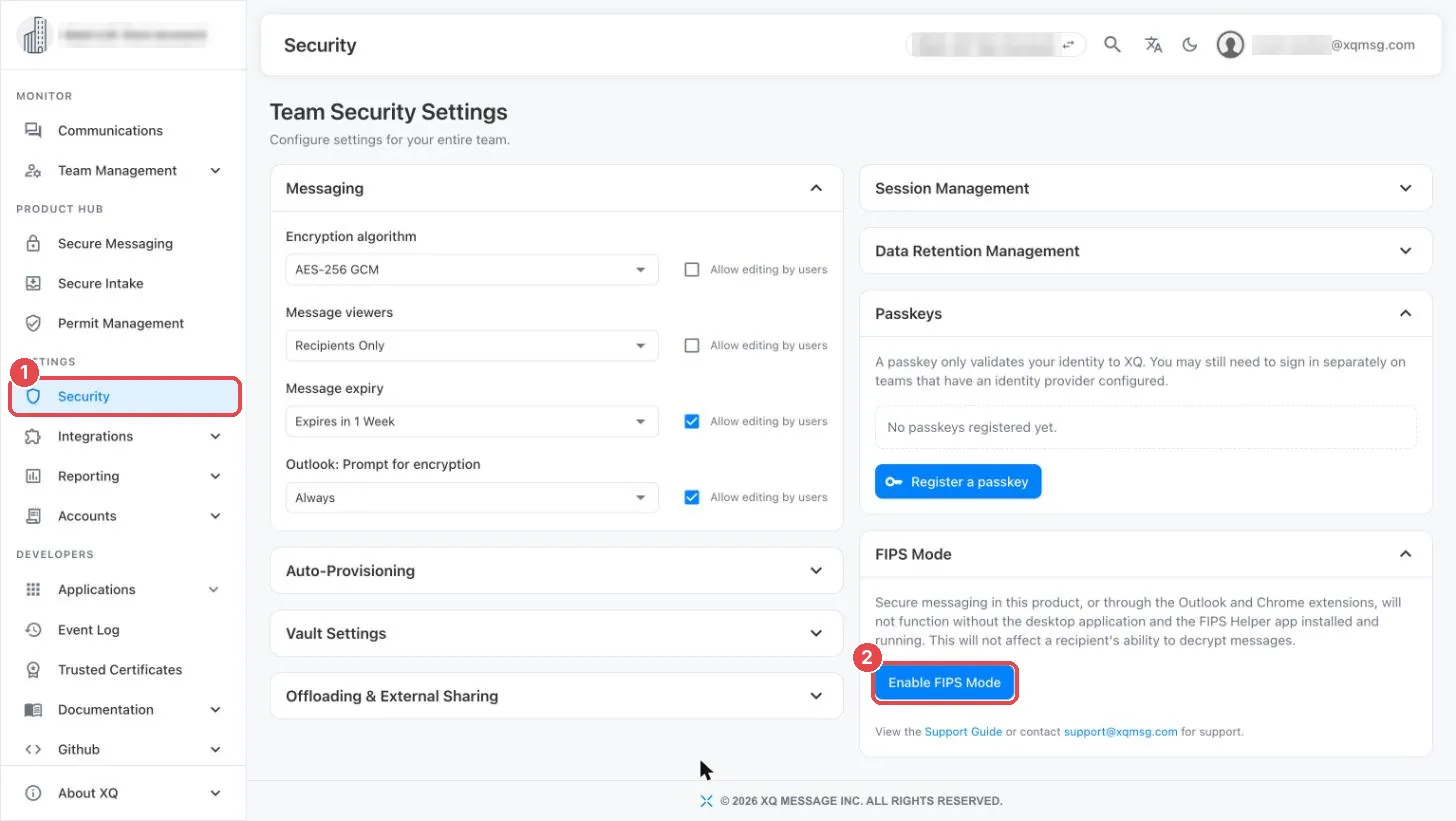
In the XQ Dashboard, go to Settings > Security.
-
In the FIPS Mode card, click Enable FIPS Mode. If FIPS Mode is already enabled, the card shows a Disable FIPS Mode button instead; skip to step 4.
-
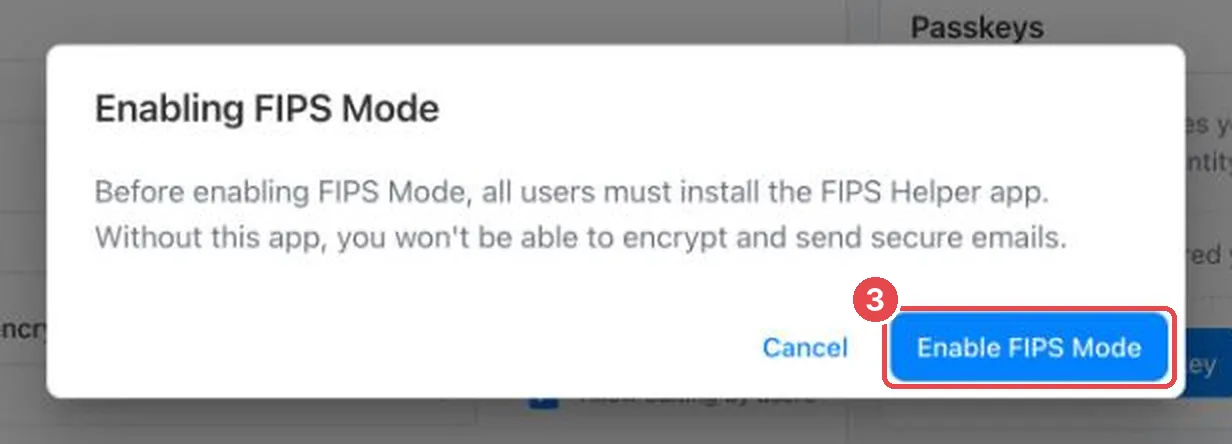
In the Enabling FIPS Mode dialog, click Enable FIPS Mode to confirm.
FIPS Mode is now enforced for every member of the team, and the Encryption algorithm setting under Messaging changes to FIPS.
-
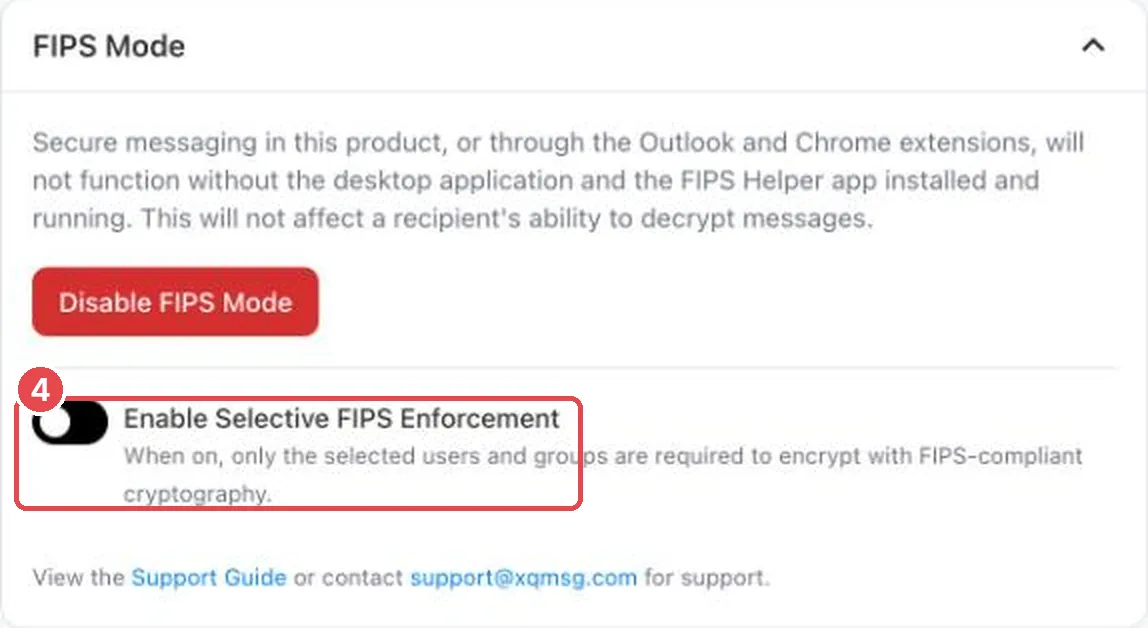
Turn on Enable Selective FIPS Enforcement.
The change saves immediately. Until you save a list of users and groups in the next steps, FIPS is not enforced for anyone.
-
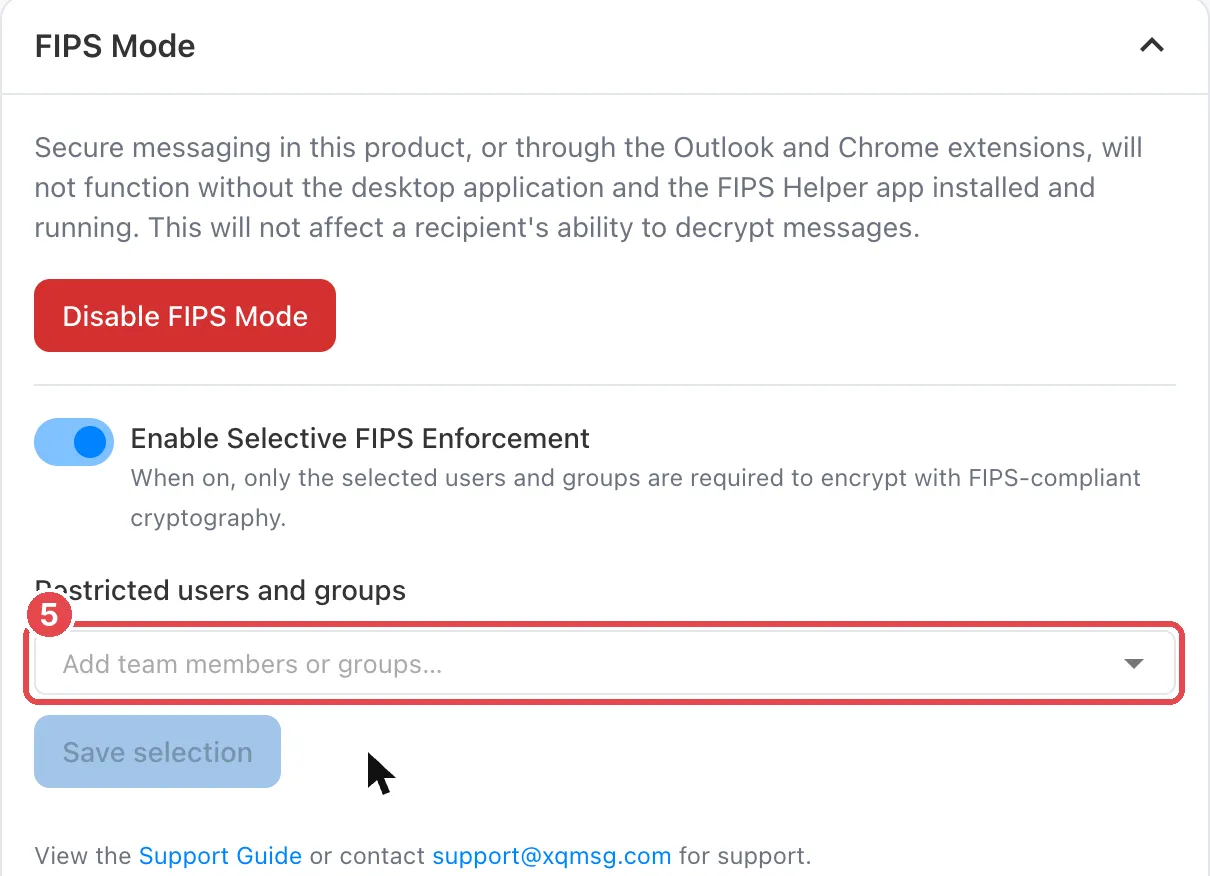
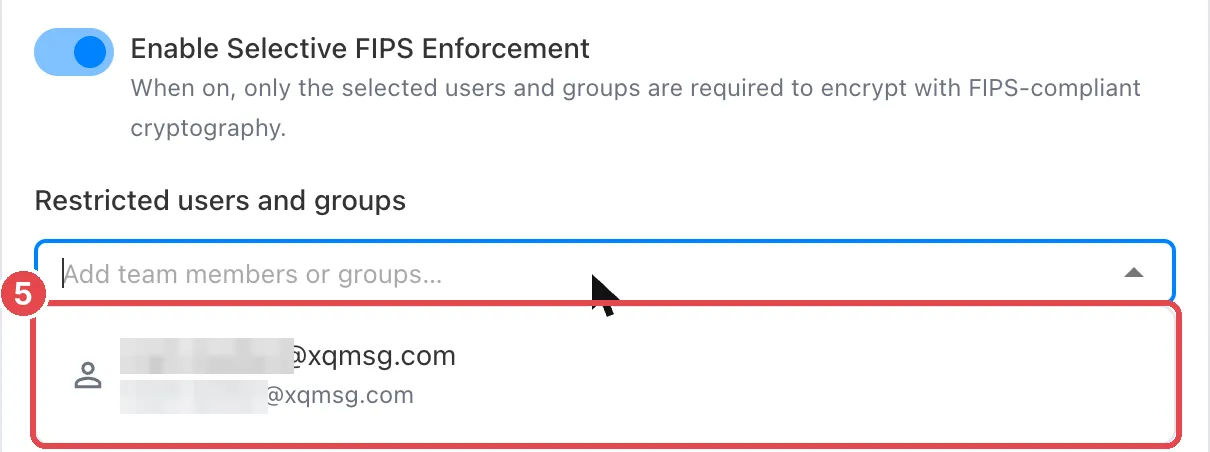
Click the Restricted users and groups field, then type a name, email address, or group name, or choose from the list. Repeat to add more team members or groups.
-
Click Save selection. To discard your changes instead, click Cancel.
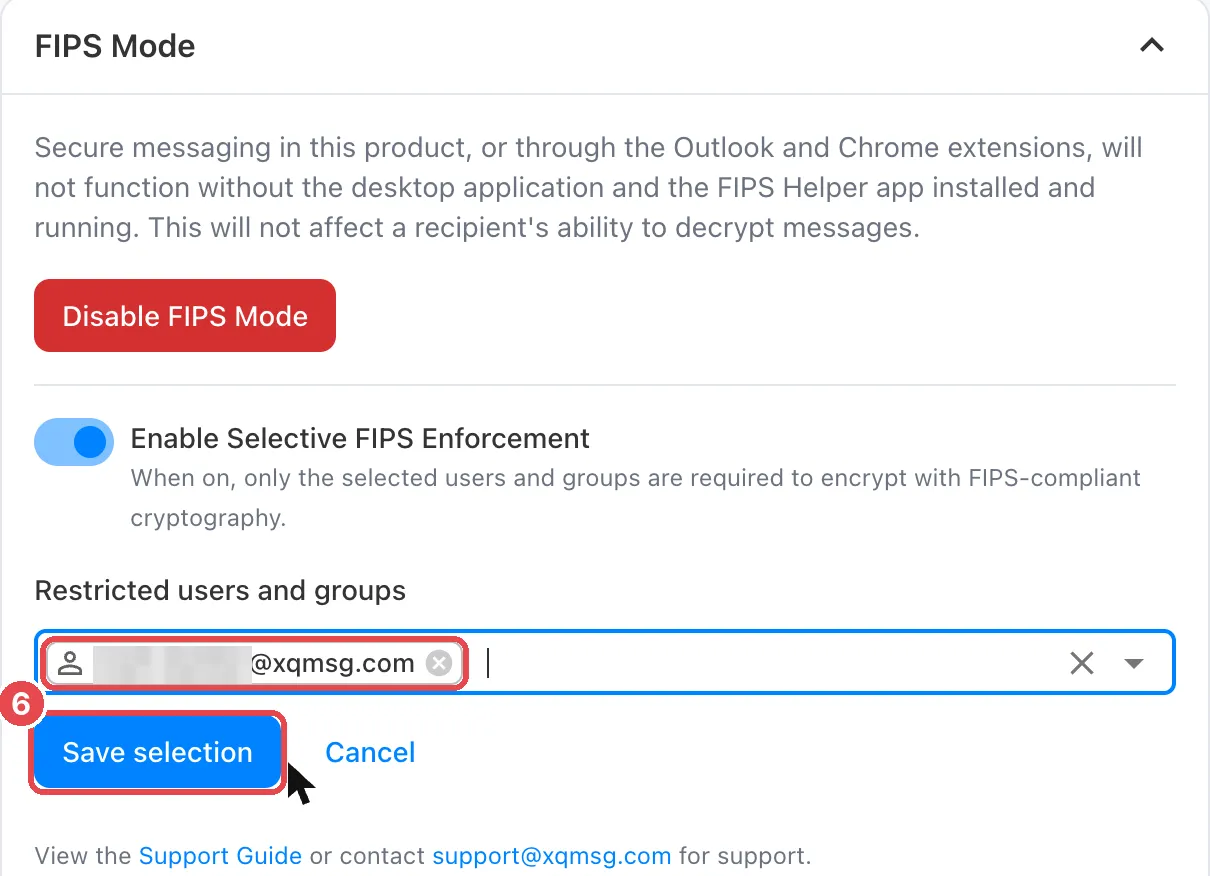
The selected users and groups are now required to use FIPS-validated encryption. Everyone else on the team sends with standard AES-256 GCM.
Change who is restricted
Section titled “Change who is restricted”- Go to Settings > Security and find the FIPS Mode card.
- In Restricted users and groups, add users or groups, or click the × on an entry to remove it.
- Click Save selection.
To change who is restricted through a group, you can also update that group’s membership in Team Management or your identity provider.
Return to team-wide FIPS enforcement
Section titled “Return to team-wide FIPS enforcement”Turn off Enable Selective FIPS Enforcement. The change saves immediately: FIPS Mode applies to every member of the team again, and anyone without the FIPS components installed can no longer send encrypted email.
Encryption algorithm setting
Section titled “Encryption algorithm setting”While FIPS Mode is enabled, the Encryption algorithm setting under Messaging is fixed to FIPS and can’t be changed by users.

Turn off FIPS Mode
Section titled “Turn off FIPS Mode”To stop requiring FIPS-validated encryption for everyone, including restricted users, click Disable FIPS Mode in the FIPS Mode card. FIPS Mode turns off immediately, without a confirmation step, and the Encryption algorithm setting returns to AES-256 GCM.
Your Selective FIPS Enforcement setting is kept. If you enable FIPS Mode again later, selective enforcement is applied the same way it was before you turned FIPS Mode off.
Related articles
Section titled “Related articles”Get help
Section titled “Get help”See How to Contact Support or contact support@xqmsg.com.
© Copyright XQ Message Inc. · FAQ